Tag: Windows 11

  • Collect an Autopilot Hardware Hash With PowerShell

    I recently had a rush order of laptops come in from a supplier we don’t normally use. Our usual supplier registers new devices for Autopilot before they ship, but this one didn’t, so I had to collect the hardware hashes myself.

    Here is the PowerShell script I used. It grabs the hash and saves it as a CSV, ready to import into Intune.

    No extra modules, no downloads. It uses what is already built into Windows.

    What the script does

    It reads the hash from the device itself, adds the serial number, and writes a CSV in the format Intune expects.

    You can also add a group tag, which is handy if you sort devices into Autopilot profiles by tag.

    Getting to a desktop from the OOBE

    A brand new laptop sits at the out-of-box experience (OOBE), the first setup screen, with no desktop to run anything from. You can get past it without setting anything up.

    1. At the first OOBE screen, press Ctrl + Shift + F3.
    2. The laptop restarts into audit mode and lands on a desktop, with a System Preparation Tool window open.
    3. Run the script from there (steps below).

    Audit mode signs you in as the built-in administrator, so the script gets the admin rights it needs.

    How to use it

    1. Get the script from my GitHub repo and copy it onto the device, a USB stick works well.
    2. Open PowerShell as administrator. The script will stop with a clear message if you forget.
    3. Run it from the folder where you saved it.
    powershell.exe -NoProfile -ExecutionPolicy Bypass -File .\Get-AutopilotHardwareHash.ps1

    Want a group tag and a specific output path? Add the parameters.

    .\Get-AutopilotHardwareHash.ps1 -GroupTag "Sales" -OutputFile C:\Temp\hwid.csv

    With no parameters, it saves AutopilotHWID.csv in the current folder. Copy the CSV off the device before you carry on.

    Going back to the OOBE

    If you used audit mode, put the laptop back to its first-run state before you hand it on.

    1. In the System Preparation Tool window, set the cleanup action to Enter System Out-of-Box Experience (OOBE).
    2. Leave Generalize unticked.
    3. Set the shutdown option to Reboot and click OK.

    Importing the CSV into Intune

    1. Open the Intune admin center and go to the Windows Autopilot devices page.
    2. Choose Import and select your CSV.
    3. Wait for the import to finish, then check the device appears in the list.

    Imports can take a few minutes, so give it a moment before you panic.

    Good to know

    • It only works on the device you are collecting from, so run it on each one.
    • If the hash is not available, the script tells you rather than saving an empty file.
    • Test it on one device first and check the CSV imports cleanly before you roll it out.

    The script is free to use and change under the MIT licence. Give it a spin and let me know how you get on.

  • Demystifying the Intune Remove Data Menu

    I used to stare at the device actions menu in Intune and panic. I was always terrified of clicking the wrong button and accidentally deleting a user’s personal photos. Microsoft recently updated the admin center interface to tidily group all these reset options into one neat “Remove data” menu. It looks a lot cleaner now. If you are still a bit confused by the four different choices, you are definitely not alone.

    Here is exactly what each button actually does.

    • Retire: This removes company data and unhooks the device from your management. It leaves personal apps and files completely untouched. This is the polite choice for a departing employee who is keeping their own device.
    • Wipe: It performs a full factory reset and deletes all personal and company data. You should use this strictly for lost, stolen, or entirely decommissioned company hardware.
    • Fresh start: Think of this as a deep clean for the operating system. It reinstalls a fresh copy of Windows and removes annoying manufacturer bloatware. The device stays enrolled in your system.
    • Autopilot Reset: This gets a machine perfectly ready for its next owner. It wipes the previous user’s data and settings. The computer stays fully enrolled and ready to hand straight to the new employee.

    Here is my quick cheat sheet to help you remember the differences.

    1. Retire: Unmanage the device but protect personal data.
    2. Wipe: Delete absolutely everything.
    3. Fresh start: Clean up the operating system but keep it enrolled.
    4. Autopilot reset: Prep for the next user without re-enrolling.

    Hopefully, this saves you from a mild panic attack the next time you need to clear a device. Give it a spin and see what you think.

  • How Windows updates should be managed on a business network

    How Windows updates should be managed on a business network

    Windows updates have a bad reputation. Most people picture the same thing: a machine that reboots itself halfway through a piece of work, or the update that lands on a Friday and breaks something by Monday.

    That reputation is fair. Left alone, PCs update whenever they like. Multiply that across a company and you get chaos.

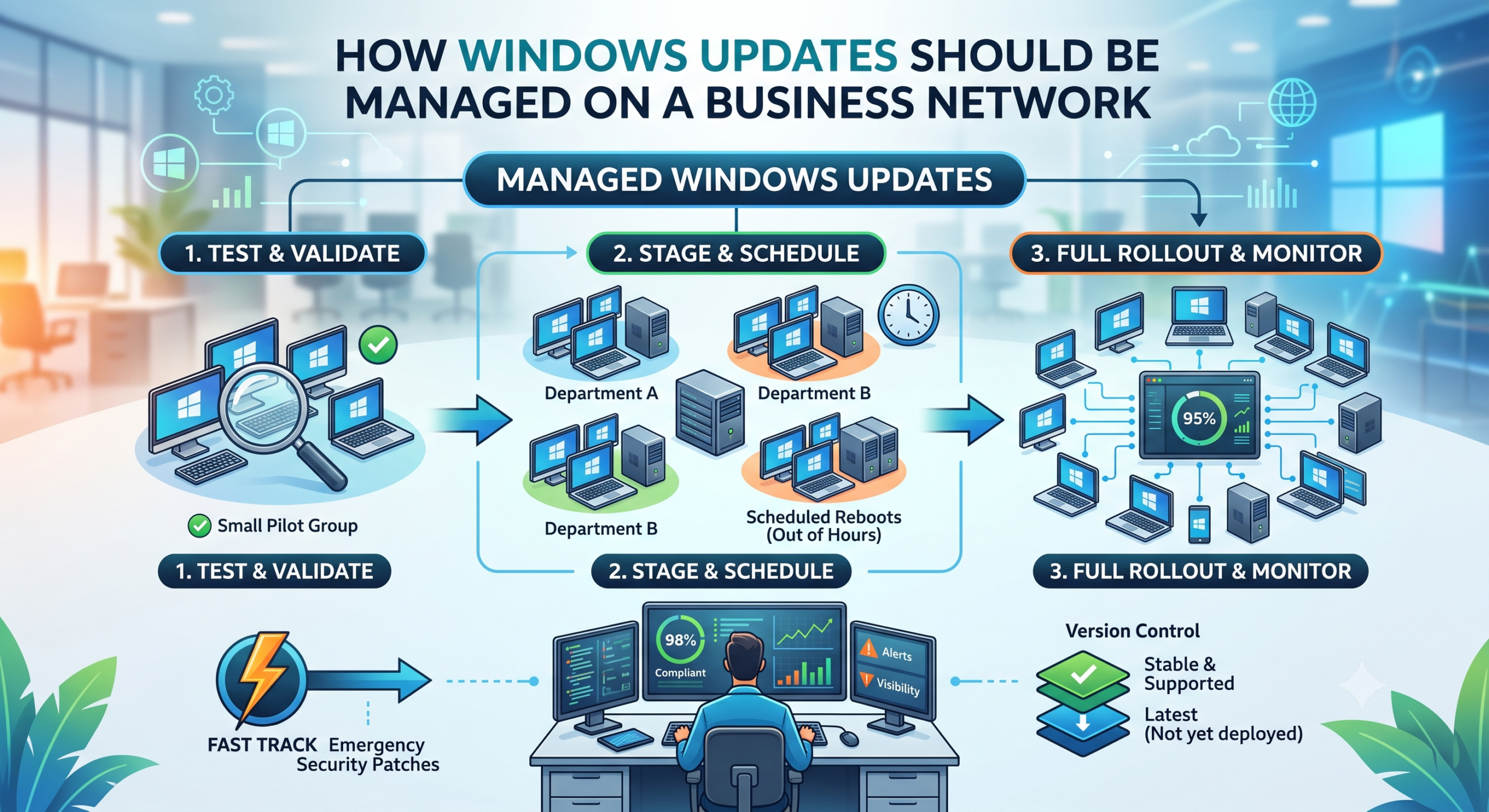
    It doesn’t have to be that way. Managed properly, updates should be something nobody in the business even notices. Here’s what good looks like.

    Test before you trust

    The biggest mistake is pushing every update to every machine the moment Microsoft releases it.

    A better approach is to stage it. Give the update to a small group of machines first, then watch them for a few days. If those are happy, roll it out to everyone else.

    The reason is simple. Bad updates happen, more often than Microsoft would like. If one slips through, you want a couple of machines affected, not the whole company. Staging means you catch it early and stop it before it spreads.

    Think of it as tasting the food before it goes out to the whole table.

    Schedule updates around people, not over them

    Nobody should get a reboot in the middle of a meeting.

    Updates should install and machines restart outside working hours. The work happens quietly in the background and the team gets on with their day.

    Set a deadline too. Without one, people click “remind me later” indefinitely and end up months behind. That gap is exactly where attackers get in.

    Stay on a version that works

    Every so often Microsoft releases a big new version of Windows. Those early releases are usually where the teething problems live.

    Machines shouldn’t leap onto the newest version the day it arrives. Keep the whole business on a stable, supported version, and move up once it’s proven itself. Just don’t leave it so long that you fall out of support and stop getting security fixes. That balance matters.

    Keep a fast lane for serious threats

    The careful, staged approach is right for routine updates. It’s the wrong approach for an emergency.

    When a serious security flaw appears, and one that’s actively being exploited, you need to push the fix out straight away. No staging, no deferral. Good update management has both speeds built in.

    Measure it, don’t assume it

    The part most people skip is checking whether any of it actually worked.

    You need visibility. Something that tells you which machines are up to date and which are lagging. If a machine is stuck, you chase it. Assuming everything’s fine because you set a policy once is how estates quietly drift out of date.

    Scale it to the size of the business

    A large estate can afford several staged groups. A small office of a few PCs can’t, and doesn’t need to.

    For a handful of machines, keep it simple. Update everyone together after a short safety delay. There’s no point building a test group when there aren’t enough machines to have one.

    Match the approach to the size of the business, not the other way round.

    The goal behind all of it is the same. Machines that stay secure and current, with a team that barely notices it happening. If your updates don’t feel like that today, they’re worth a second look.

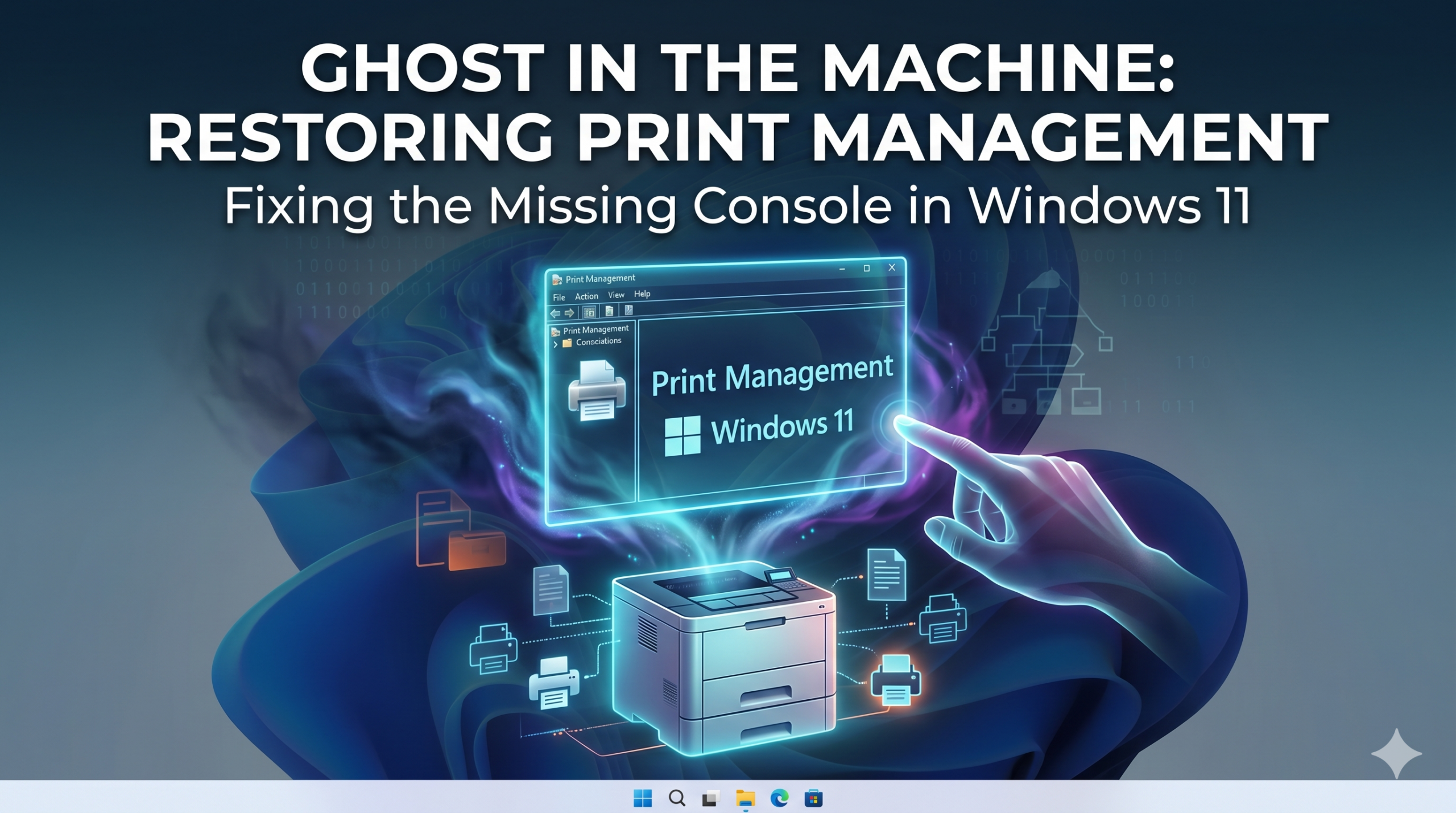
  • Ghost in the Machine: Fixing the Missing Print Management Console in Windows 11

    Ghost in the Machine: Fixing the Missing Print Management Console in Windows 11

    I was recently setting up a printer deployment for a customer when I realized the Print Management console was nowhere to be found. For IT pros, this tool is essential. It lets you manage printer drivers, ports, queues, and servers all in one place.

    In Windows 11, Microsoft often leaves this feature out by default.

    The good news? It’s still there — you just need to reinstall it.


    Why It’s Missing

    In Windows 11, Print Management is treated as an Optional Feature. If it’s not installed, it simply won’t appear in Administrative Tools or search results.

    Fortunately, adding it back only takes a minute.


    How to Install Print Management in Windows 11

    1. Press Windows Key + I to open Settings.
    2. Click Apps in the left sidebar.
    3. Select Optional features.
    4. Click the blue View features button.
    5. Type Print Management in the search box.
    6. Tick the box.
    7. Click Install.

    Once installed, the console is ready to use.


    How to Launch the Tool Quickly

    Instead of searching through the Start menu, use this shortcut:

    1. Press Windows + R.
    2. Type:
    printmanagement.msc
    
    1. Press Enter.

    This opens the console instantly.


    Why This Tool Is a Lifesaver

    When managing printer deployments for clients, you need visibility. The standard Windows printer settings don’t provide enough detail when:

    • Troubleshooting driver conflicts
    • Cleaning up old print queues
    • Managing ports
    • Deploying printers via Group Policy

    Print Management gives you a clean, centralized view of your entire print infrastructure.

    If you work in IT and haven’t used it in a while, give it another look. It’s still one of the most useful hidden tools in Windows 11.