Tag: IT Administration

  • Which Android Management Mode Do You Actually Need?

    I spent way too much time testing different Android enterprise setups before realizing one simple truth: you cannot manage every device the same way.

    Pick the wrong mode, and you either end up with angry staff or a massive security headache.

    Here is how I break down the three main flavors of Android device management, so you can pick the right tool for the job.

    Corporate-Owned, Fully Managed

    The company buys the phone, hands it to an employee, and IT keeps full control.

    This was exactly what I needed for my fleet. You can push updates, wipe the hardware remotely if it gets lost, and lock down security settings without asking permission.

    • Best for: Company-owned phones issued to individual staff members.
    • Why it works: You get complete visibility and protection without compromise.

    Dedicated Devices

    Think of these as digital kiosks. They are locked down tight, usually running just a single app or a tiny set of approved tools.

    They are fantastic for a front-desk visitor sign-in screen, a warehouse barcode scanner, or an interactive shop display. But try giving one to a mobile worker who needs email, maps, and a browser, and it quickly becomes useless.

    • Best for: Kiosks, shared inventory scanners, and point-of-sale tablets.
    • Why it works: Nobody can tamper with the settings or wander off into YouTube.

    Work Profile

    This is the sweet spot for Bring Your Own Device (BYOD) setups.

    Instead of taking over the entire phone, you create a secure, encrypted sandbox just for company apps like email and Slack. The user keeps total privacy on their side of the phone, and IT gets full control inside the work container. If that person leaves the company, you can wipe the work data in one click without touching their personal family photos.

    • Best for: Personal phones used for light day-to-day work tasks.
    • Why it works: Total privacy for the employee, solid security for the company.

    Match the management mode to the actual daily job, and your deployment will run a whole lot smoother. Give these setups a test run in your lab and see which one fits your team best.
  • Is It Time to Pull Your Data Out of the Cloud?

    For years now we have bought into the idea that everything belongs in the public cloud. Spin it up, let someone else worry about the hardware, job done.

    Lately though, I’ve noticed a lot of businesses quietly doing the opposite. They’re pulling their data and applications back onto their own kit.

    There’s a name for it: cloud repatriation. All that means is moving stuff off someone else’s servers and back onto hardware you own and control.

    It’s got me wondering if a lot of us jumped into the cloud a bit too fast.

    Why People Are Having Second Thoughts

    Here’s what I keep hearing from folks who are reconsidering:

    • The bill shock. Cloud costs can spiral fast. Data transfer fees and storage add-ons creep up on you every month.
    • Steady workloads. If you’re running servers 24/7 with predictable traffic, buying your own hardware is often cheaper over a few years.
    • Data control. Keeping your data on your own network makes privacy and compliance rules a lot easier to satisfy.
    • Speed. Local hardware means lower latency and faster response times for everyday tasks.

    Not an All or Nothing Choice

    I’m not saying ditch the cloud completely. For most setups, a hybrid approach, some things kept local and some left in the cloud, is the real sweet spot.

    But hardware has become so efficient lately that owning your own kit makes more sense than it has in years.

    So what’s your take? Are you sticking with the cloud all the way, or are you starting to bring things back in-house?

  • How Windows updates should be managed on a business network

    How Windows updates should be managed on a business network

    Windows updates have a bad reputation. Most people picture the same thing: a machine that reboots itself halfway through a piece of work, or the update that lands on a Friday and breaks something by Monday.

    That reputation is fair. Left alone, PCs update whenever they like. Multiply that across a company and you get chaos.

    It doesn’t have to be that way. Managed properly, updates should be something nobody in the business even notices. Here’s what good looks like.

    Test before you trust

    The biggest mistake is pushing every update to every machine the moment Microsoft releases it.

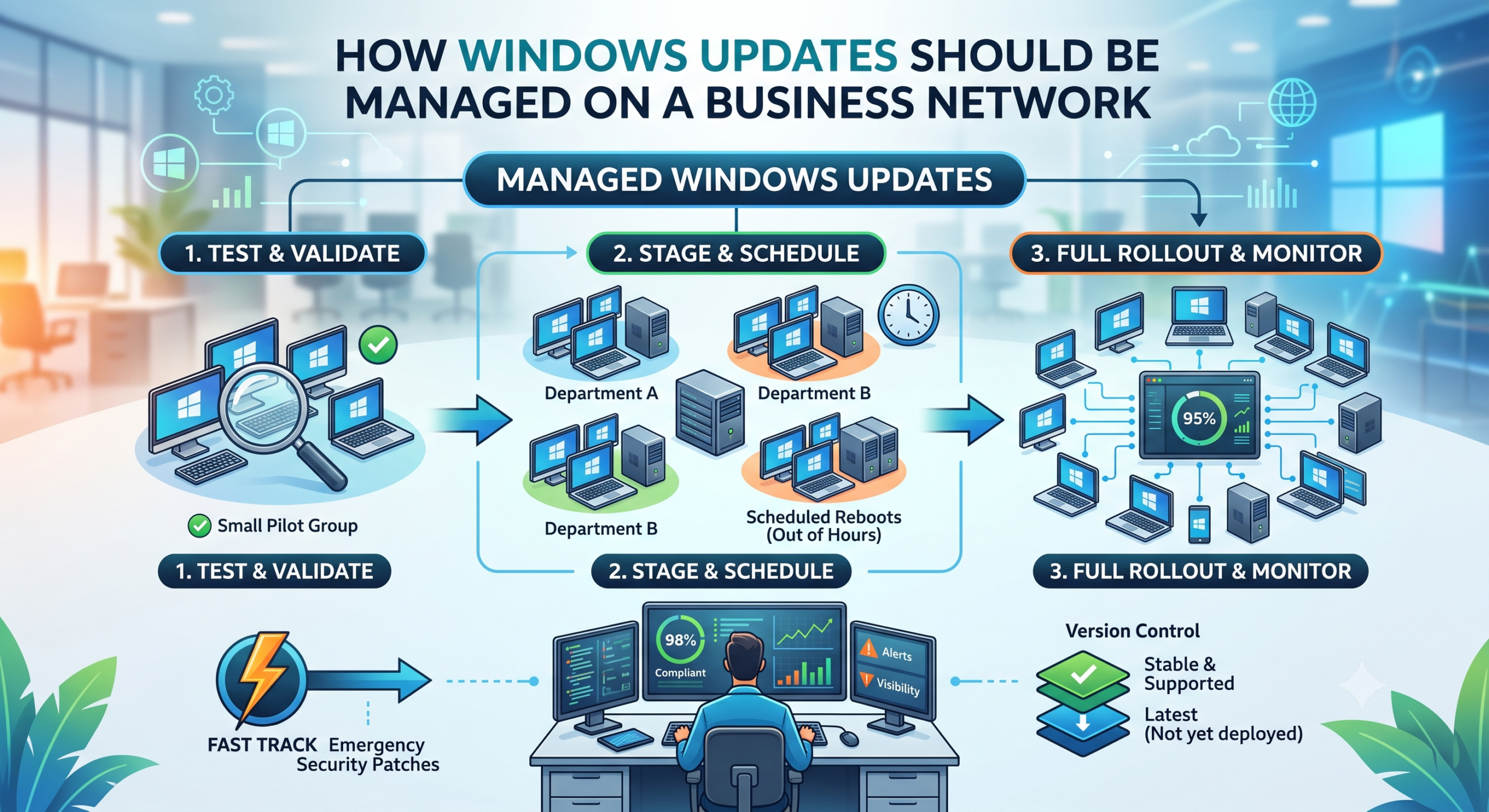
    A better approach is to stage it. Give the update to a small group of machines first, then watch them for a few days. If those are happy, roll it out to everyone else.

    The reason is simple. Bad updates happen, more often than Microsoft would like. If one slips through, you want a couple of machines affected, not the whole company. Staging means you catch it early and stop it before it spreads.

    Think of it as tasting the food before it goes out to the whole table.

    Schedule updates around people, not over them

    Nobody should get a reboot in the middle of a meeting.

    Updates should install and machines restart outside working hours. The work happens quietly in the background and the team gets on with their day.

    Set a deadline too. Without one, people click “remind me later” indefinitely and end up months behind. That gap is exactly where attackers get in.

    Stay on a version that works

    Every so often Microsoft releases a big new version of Windows. Those early releases are usually where the teething problems live.

    Machines shouldn’t leap onto the newest version the day it arrives. Keep the whole business on a stable, supported version, and move up once it’s proven itself. Just don’t leave it so long that you fall out of support and stop getting security fixes. That balance matters.

    Keep a fast lane for serious threats

    The careful, staged approach is right for routine updates. It’s the wrong approach for an emergency.

    When a serious security flaw appears, and one that’s actively being exploited, you need to push the fix out straight away. No staging, no deferral. Good update management has both speeds built in.

    Measure it, don’t assume it

    The part most people skip is checking whether any of it actually worked.

    You need visibility. Something that tells you which machines are up to date and which are lagging. If a machine is stuck, you chase it. Assuming everything’s fine because you set a policy once is how estates quietly drift out of date.

    Scale it to the size of the business

    A large estate can afford several staged groups. A small office of a few PCs can’t, and doesn’t need to.

    For a handful of machines, keep it simple. Update everyone together after a short safety delay. There’s no point building a test group when there aren’t enough machines to have one.

    Match the approach to the size of the business, not the other way round.

    The goal behind all of it is the same. Machines that stay secure and current, with a team that barely notices it happening. If your updates don’t feel like that today, they’re worth a second look.

  • Linking Apple Business Manager with Microsoft Intune

    Linking Apple Business Manager with Microsoft Intune

    Today I had I continue configuring the iPad for a customer now that the Apple Buainess account had been approved. Since this was the first corporate owned Apple device they had purchased and wanted managed. I needed to connect Intune to Apple Business Here is the second part to the managing apple devices in Intune.

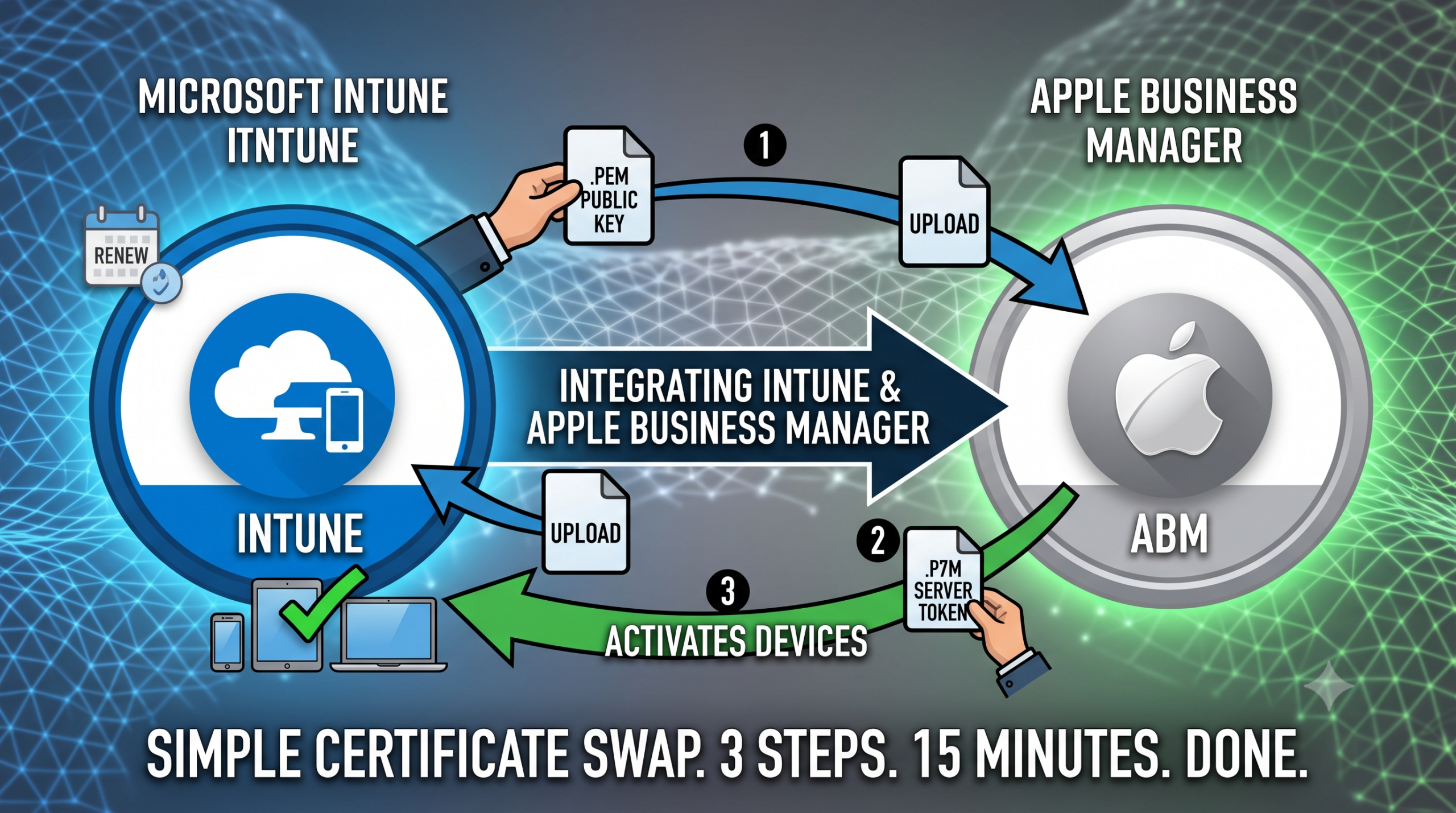
    If Intune is your MDM and you’re deploying Apple kit at scale, Apple Business and Intune need to be talking to each other before a single corporate iPhone, iPad, or Mac goes out the door.

    People overthink this integration. It’s a certificate swap. Pull a public key from Intune, hand it to Apple, bring Apple’s token back home. Three steps, fifteen minutes, done.

    Here’s how to set it up.

    Phase 1: Grab the public key from Intune

    You’re generating an encryption key in your tenant so Apple knows who it’s trusting.

    1. Sign in to the Microsoft Intune admin center.
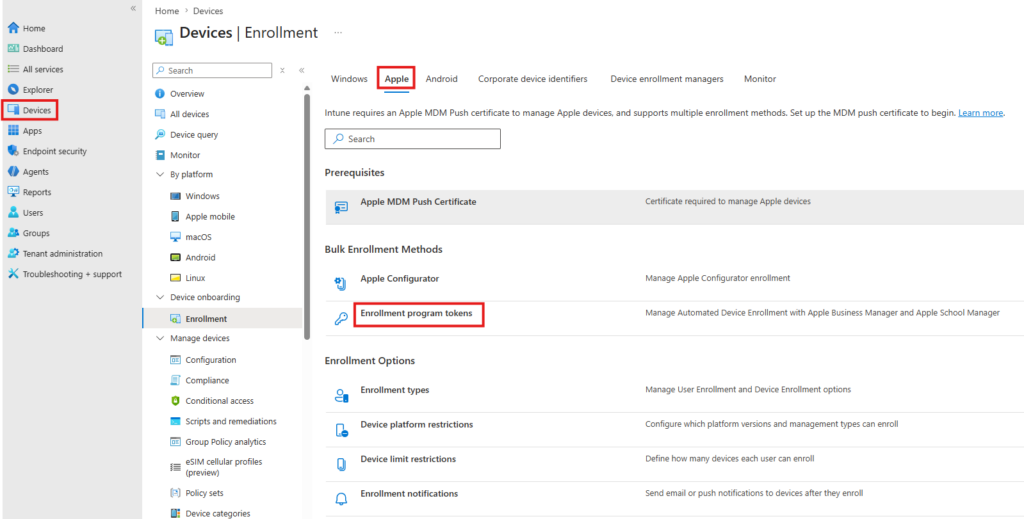
    2. Go to Devices > Enrollment (under Device onboarding) > Apple.
    3. Select Enrollment program tokens and click Create.
    4. Tick the box agreeing to let Microsoft send user and device info to Apple.
    5. Click Download your public key — this grabs the .pem certificate.
    6. Keep this tab open. You’ll need it again in a minute.

    Phase 2: Build the MDM server in Apple Business

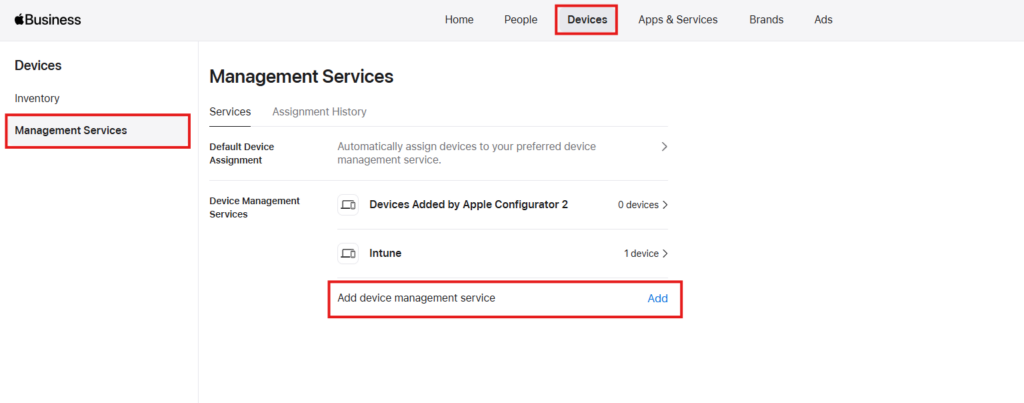
    Open a new tab and log in to Apple Business. https://business.apple.com/ You’ll need the Administrator or Device Enrollment Manager role.

    At the top select Devices, click your Management Services, then Add device management service click Add.

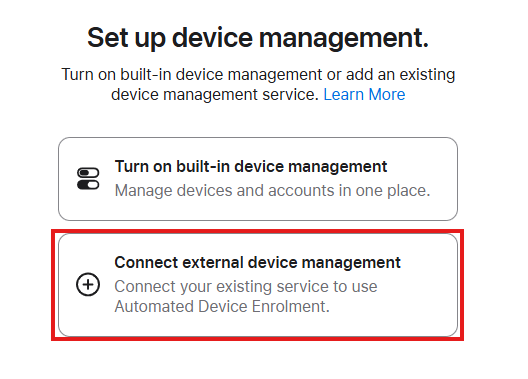
    Under Set up device management, select Connect to external device management, then click the continue button at the bottom.

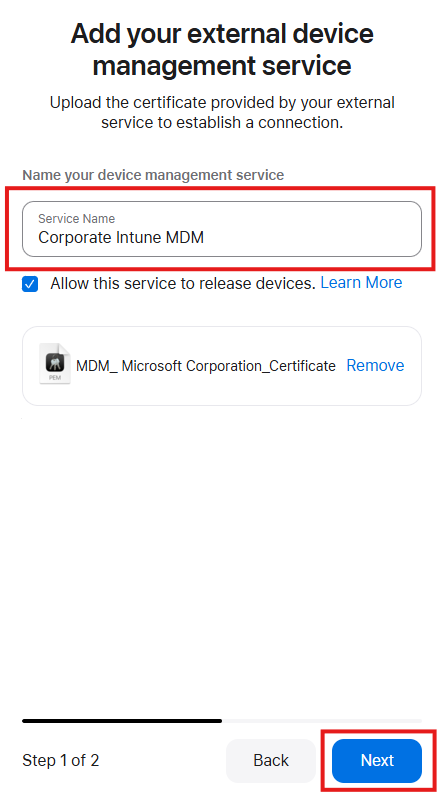
    Give it a sensible name — “Corporate Intune MDM” does the job.

    Under MDM Server Settings, upload the .pem file from Phase 1, and click the blue Next button

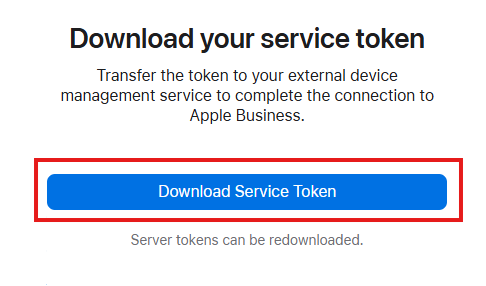
    Click Download Service token. and click Done.

    Phase 3: Upload Apple’s token back into Intune

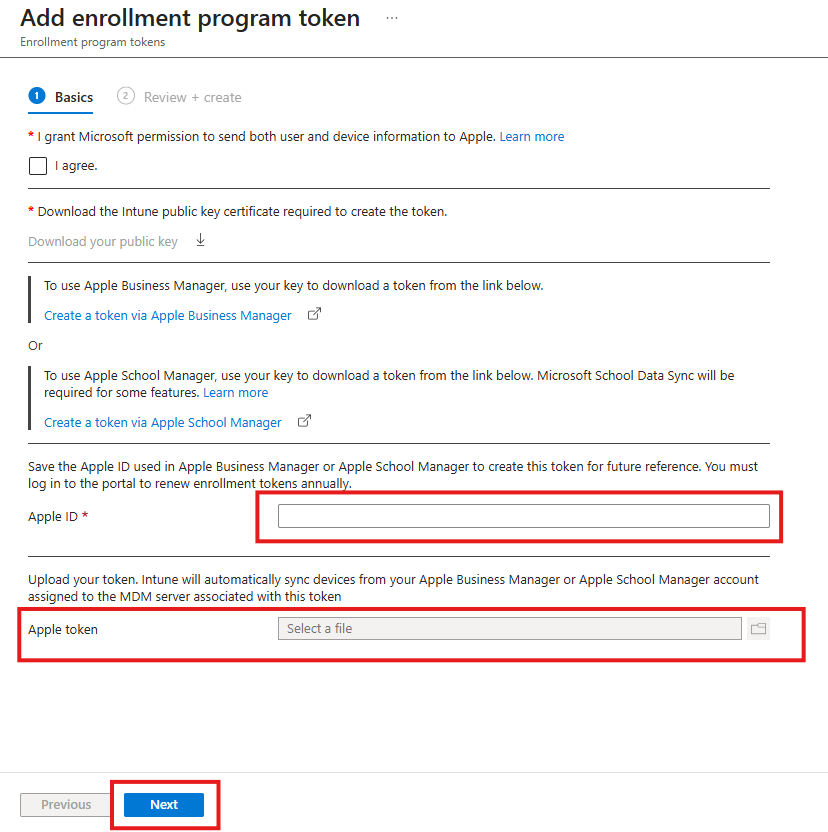
    1. Back to your Intune tab.
    2. In the Apple ID box, enter the corporate Apple ID tied to your ABM account. Worth a comment here for whoever inherits this tenant down the line — they’ll want to know which Apple ID this is.
    3. In the Apple token box, upload the .p7m file from Apple.
    4. Click Next to skip past scope tags (unless your org actually uses them), then Create.

    What happens next

    Token status flips to Active and the plumbing’s in place. Two jobs left:

    Assign hardware in Apple Business. Head to Devices, find your serial numbers or order numbers, assign them to the Intune MDM server you just created.

    Sync and build profiles in Intune. Back to your enrollment token settings, hit Sync to pull the newly assigned serials through. Once they show up, build your Enrollment Program Profiles — force supervision, lock the MDM profile, skip the setup assistant screens for the end user.

    One thing to flag for future you: these tokens expire annually. Stick a reminder in the calendar now, or you’ll be doing this again in a panic next year.

  • Ghost in the Machine: Fixing the Missing Print Management Console in Windows 11

    Ghost in the Machine: Fixing the Missing Print Management Console in Windows 11

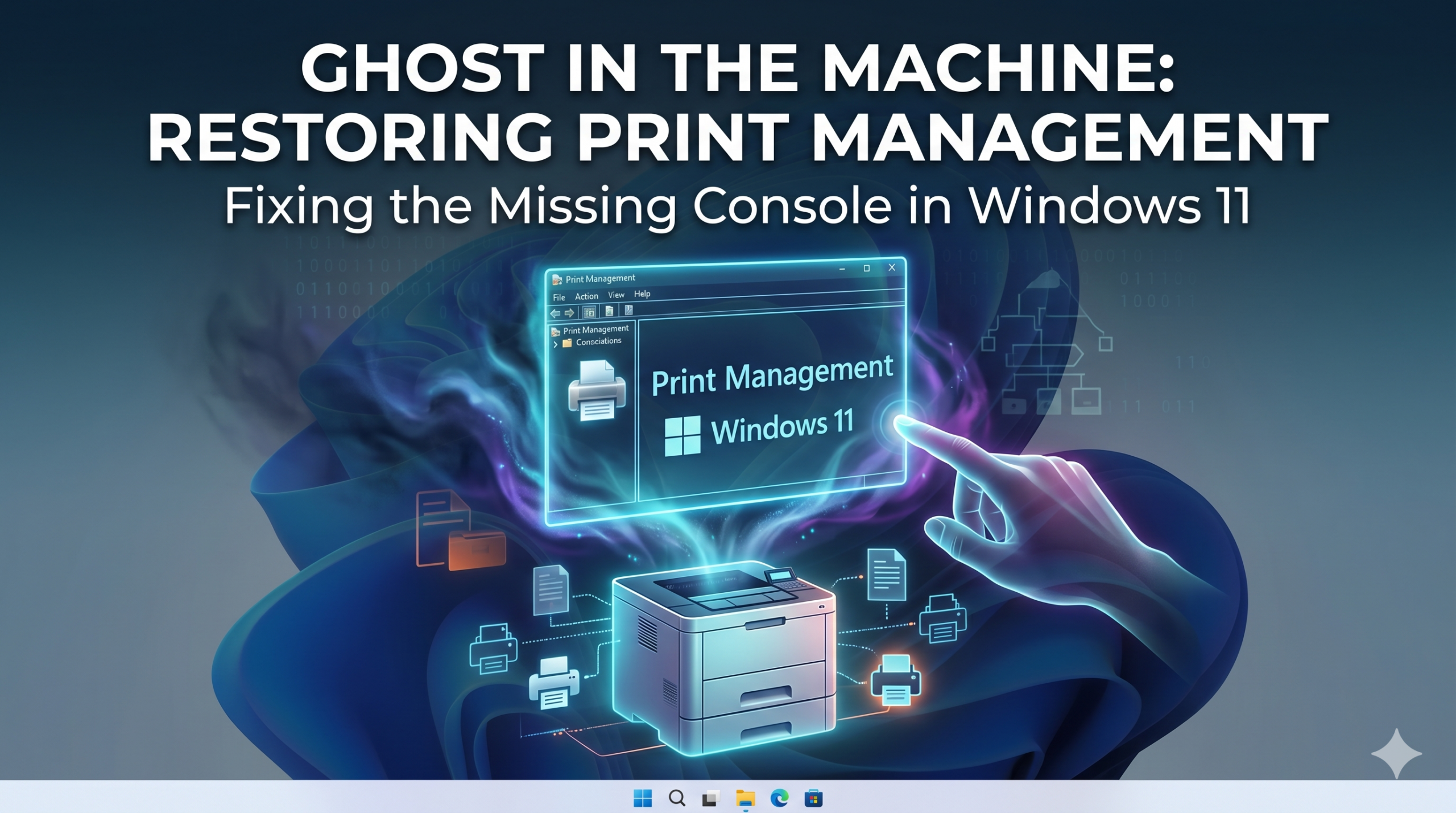
    I was recently setting up a printer deployment for a customer when I realized the Print Management console was nowhere to be found. For IT pros, this tool is essential. It lets you manage printer drivers, ports, queues, and servers all in one place.

    In Windows 11, Microsoft often leaves this feature out by default.

    The good news? It’s still there — you just need to reinstall it.


    Why It’s Missing

    In Windows 11, Print Management is treated as an Optional Feature. If it’s not installed, it simply won’t appear in Administrative Tools or search results.

    Fortunately, adding it back only takes a minute.


    How to Install Print Management in Windows 11

    1. Press Windows Key + I to open Settings.
    2. Click Apps in the left sidebar.
    3. Select Optional features.
    4. Click the blue View features button.
    5. Type Print Management in the search box.
    6. Tick the box.
    7. Click Install.

    Once installed, the console is ready to use.


    How to Launch the Tool Quickly

    Instead of searching through the Start menu, use this shortcut:

    1. Press Windows + R.
    2. Type:
    printmanagement.msc
    
    1. Press Enter.

    This opens the console instantly.


    Why This Tool Is a Lifesaver

    When managing printer deployments for clients, you need visibility. The standard Windows printer settings don’t provide enough detail when:

    • Troubleshooting driver conflicts
    • Cleaning up old print queues
    • Managing ports
    • Deploying printers via Group Policy

    Print Management gives you a clean, centralized view of your entire print infrastructure.

    If you work in IT and haven’t used it in a while, give it another look. It’s still one of the most useful hidden tools in Windows 11.