Category: Intune

  • Setting up Android Enterprise enrolment in Intune.

    I recently sat down to enrol a fleet of brand new corporate Android tablets into Microsoft Intune.

    Everything was cruising along nicely until Intune stopped me in my tracks with a bizarre error message. What should have been a five minute job turned into a stubborn puzzle that cost me half my morning.

    Picking the Right Enrolment Path

    Before you hand out tablets to a team, you have to tell Intune how they will be used. Android gives you three basic flavours:

    • Corporate-owned, fully managed: The company owns the hardware, one user logs in, and IT has full control. This was what I needed.
    • Dedicated devices: Great for a front desk sign-in screen locked to one app, but useless for mobile staff.
    • Work profile: Best for personal phones where you only want a tiny, secure work bubble.

    I picked fully managed, set up my enrolment profile, and decided to do things properly. For a more detailed explanation of these please visit Android Management Options

    A Quick Win: Naming Your Devices

    Before touching the hardware, I always set up an automatic naming template. Leaving default device names makes your admin portal look like a junk drawer.

    I used this handy format in the enrolment profile:

    TAB-{{DEVICETYPE}}-{{SERIAL}}
    

    This tags every tablet with its hardware type and unique serial number right out of the box. It makes finding a specific device later ridiculously simple.

    Down the Rabbit Hole

    Next, I wanted every new tablet to drop into a dedicated Entra ID security group automatically as soon as it enrolled. That way, all the apps and security policies apply without me lifting a finger.

    I tried to save the profile, but Intune threw a giant warning at me:

    “Before you configure device groups, make sure that the Intune Provisioning Client or Intune ClientConfidential app has been added as an owner.”

    Fair enough, I thought. I jumped over to Entra ID, opened my tablet security group, clicked Owners, and searched for both names.

    Nothing. The search box stared back at me, completely blank.

    I figured the app was just hiding in the tenant. I opened Enterprise applications and searched for “Intune”, but the only thing that popped up was a PowerShell tool. Neither of the apps Microsoft explicitly told me to add actually existed under those names.

    Cracking the Code

    After twenty minutes of digging through documentation and banging my head against the desk, I realised Microsoft played a naming trick. The service principal is in your tenant, but its display name changes depending on how the tenant was set up.

    The name is a red herring. The secret is finding it by its permanent Application ID:

    f1346770-5b25-470b-88bd-d5744ab7952c
    

    Once I stopped searching for names, fixing it took sixty seconds:

    1. Open Entra ID and head to Enterprise applications.
    2. Change the search filter to Application ID starts with and paste in f1346770-5b25-470b-88bd-d5744ab7952c.
    3. Check the name that appears. In my tenant, it was disguised as Intune Autopilot ConfidentialClient.
    4. Go back to your device group, click Owners, choose Add owners, and paste that exact name in.

    As soon as that hidden app became an owner, Intune happily accepted the group and the tablets enrolled smoothly.

    Save that Application ID in your notes. The next time Intune sends you on a wild goose chase, you can skip the headache and get right back to work.

    Give it a spin on your next rollout and see what you think.
  • Demystifying the Intune Remove Data Menu

    I used to stare at the device actions menu in Intune and panic. I was always terrified of clicking the wrong button and accidentally deleting a user’s personal photos. Microsoft recently updated the admin center interface to tidily group all these reset options into one neat “Remove data” menu. It looks a lot cleaner now. If you are still a bit confused by the four different choices, you are definitely not alone.

    Here is exactly what each button actually does.

    • Retire: This removes company data and unhooks the device from your management. It leaves personal apps and files completely untouched. This is the polite choice for a departing employee who is keeping their own device.
    • Wipe: It performs a full factory reset and deletes all personal and company data. You should use this strictly for lost, stolen, or entirely decommissioned company hardware.
    • Fresh start: Think of this as a deep clean for the operating system. It reinstalls a fresh copy of Windows and removes annoying manufacturer bloatware. The device stays enrolled in your system.
    • Autopilot Reset: This gets a machine perfectly ready for its next owner. It wipes the previous user’s data and settings. The computer stays fully enrolled and ready to hand straight to the new employee.

    Here is my quick cheat sheet to help you remember the differences.

    1. Retire: Unmanage the device but protect personal data.
    2. Wipe: Delete absolutely everything.
    3. Fresh start: Clean up the operating system but keep it enrolled.
    4. Autopilot reset: Prep for the next user without re-enrolling.

    Hopefully, this saves you from a mild panic attack the next time you need to clear a device. Give it a spin and see what you think.

  • How Windows updates should be managed on a business network

    How Windows updates should be managed on a business network

    Windows updates have a bad reputation. Most people picture the same thing: a machine that reboots itself halfway through a piece of work, or the update that lands on a Friday and breaks something by Monday.

    That reputation is fair. Left alone, PCs update whenever they like. Multiply that across a company and you get chaos.

    It doesn’t have to be that way. Managed properly, updates should be something nobody in the business even notices. Here’s what good looks like.

    Test before you trust

    The biggest mistake is pushing every update to every machine the moment Microsoft releases it.

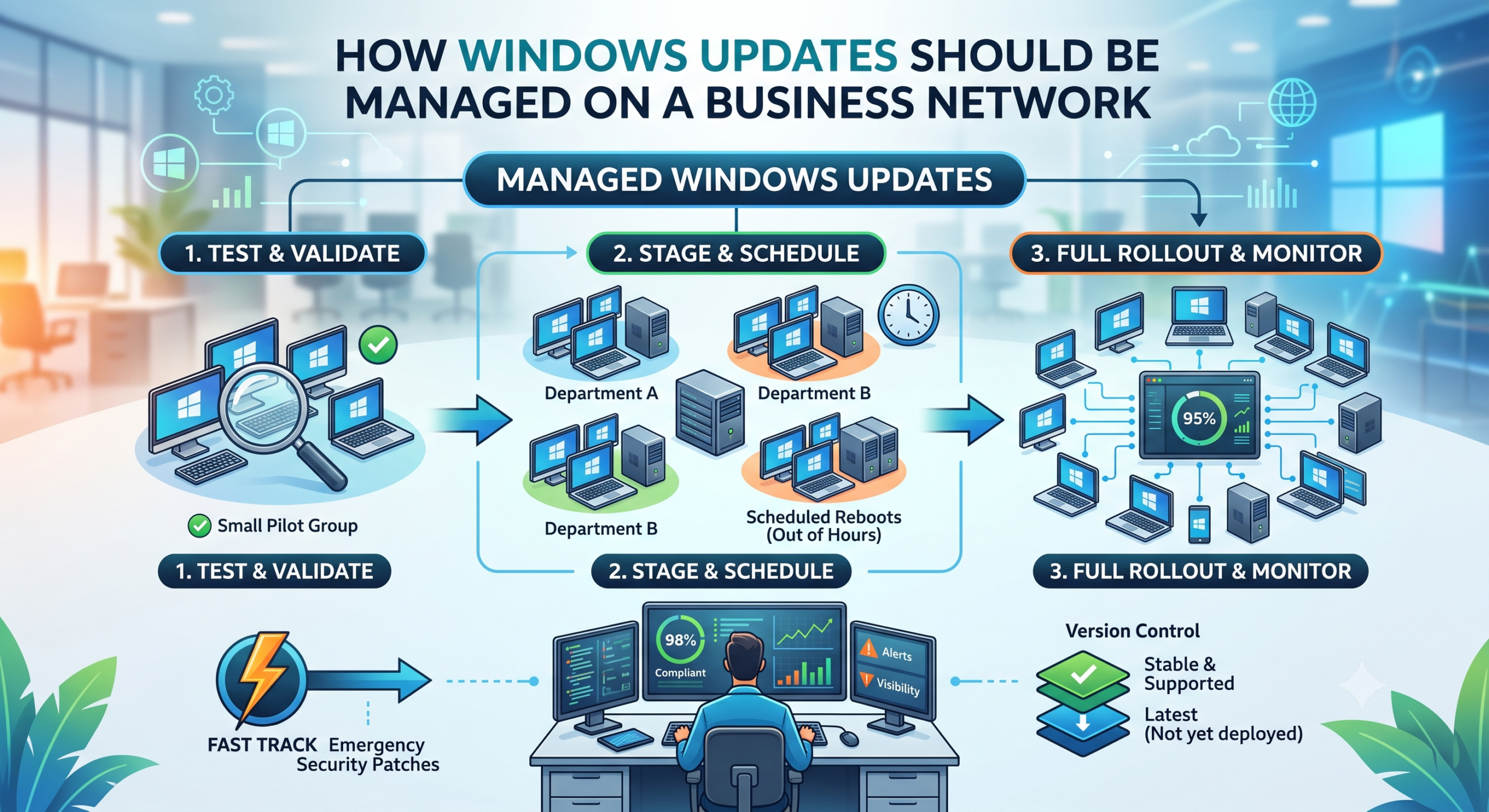
    A better approach is to stage it. Give the update to a small group of machines first, then watch them for a few days. If those are happy, roll it out to everyone else.

    The reason is simple. Bad updates happen, more often than Microsoft would like. If one slips through, you want a couple of machines affected, not the whole company. Staging means you catch it early and stop it before it spreads.

    Think of it as tasting the food before it goes out to the whole table.

    Schedule updates around people, not over them

    Nobody should get a reboot in the middle of a meeting.

    Updates should install and machines restart outside working hours. The work happens quietly in the background and the team gets on with their day.

    Set a deadline too. Without one, people click “remind me later” indefinitely and end up months behind. That gap is exactly where attackers get in.

    Stay on a version that works

    Every so often Microsoft releases a big new version of Windows. Those early releases are usually where the teething problems live.

    Machines shouldn’t leap onto the newest version the day it arrives. Keep the whole business on a stable, supported version, and move up once it’s proven itself. Just don’t leave it so long that you fall out of support and stop getting security fixes. That balance matters.

    Keep a fast lane for serious threats

    The careful, staged approach is right for routine updates. It’s the wrong approach for an emergency.

    When a serious security flaw appears, and one that’s actively being exploited, you need to push the fix out straight away. No staging, no deferral. Good update management has both speeds built in.

    Measure it, don’t assume it

    The part most people skip is checking whether any of it actually worked.

    You need visibility. Something that tells you which machines are up to date and which are lagging. If a machine is stuck, you chase it. Assuming everything’s fine because you set a policy once is how estates quietly drift out of date.

    Scale it to the size of the business

    A large estate can afford several staged groups. A small office of a few PCs can’t, and doesn’t need to.

    For a handful of machines, keep it simple. Update everyone together after a short safety delay. There’s no point building a test group when there aren’t enough machines to have one.

    Match the approach to the size of the business, not the other way round.

    The goal behind all of it is the same. Machines that stay secure and current, with a team that barely notices it happening. If your updates don’t feel like that today, they’re worth a second look.

  • Linking Apple Business Manager with Microsoft Intune

    Linking Apple Business Manager with Microsoft Intune

    Today I had I continue configuring the iPad for a customer now that the Apple Buainess account had been approved. Since this was the first corporate owned Apple device they had purchased and wanted managed. I needed to connect Intune to Apple Business Here is the second part to the managing apple devices in Intune.

    If Intune is your MDM and you’re deploying Apple kit at scale, Apple Business and Intune need to be talking to each other before a single corporate iPhone, iPad, or Mac goes out the door.

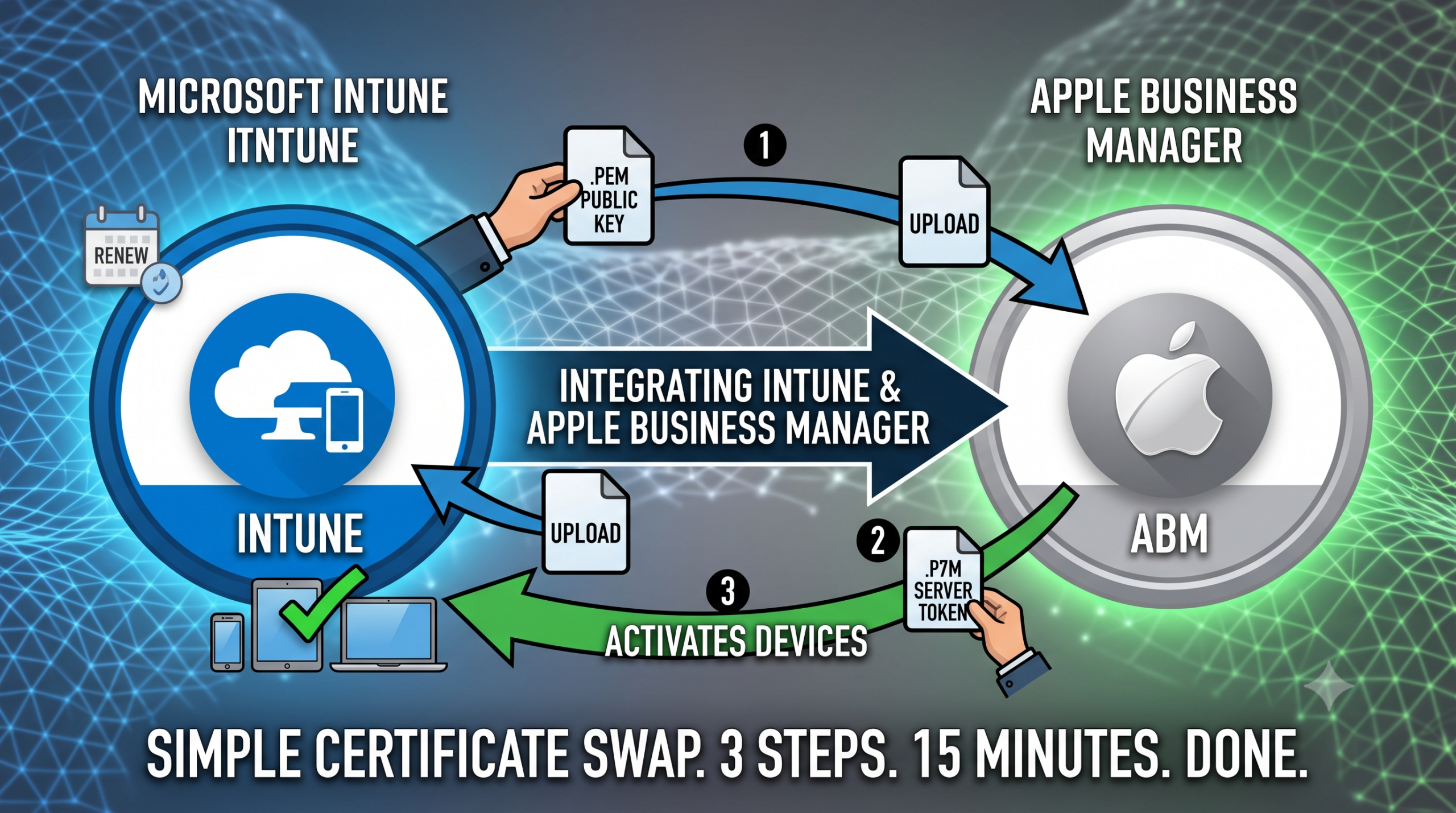
    People overthink this integration. It’s a certificate swap. Pull a public key from Intune, hand it to Apple, bring Apple’s token back home. Three steps, fifteen minutes, done.

    Here’s how to set it up.

    Phase 1: Grab the public key from Intune

    You’re generating an encryption key in your tenant so Apple knows who it’s trusting.

    1. Sign in to the Microsoft Intune admin center.
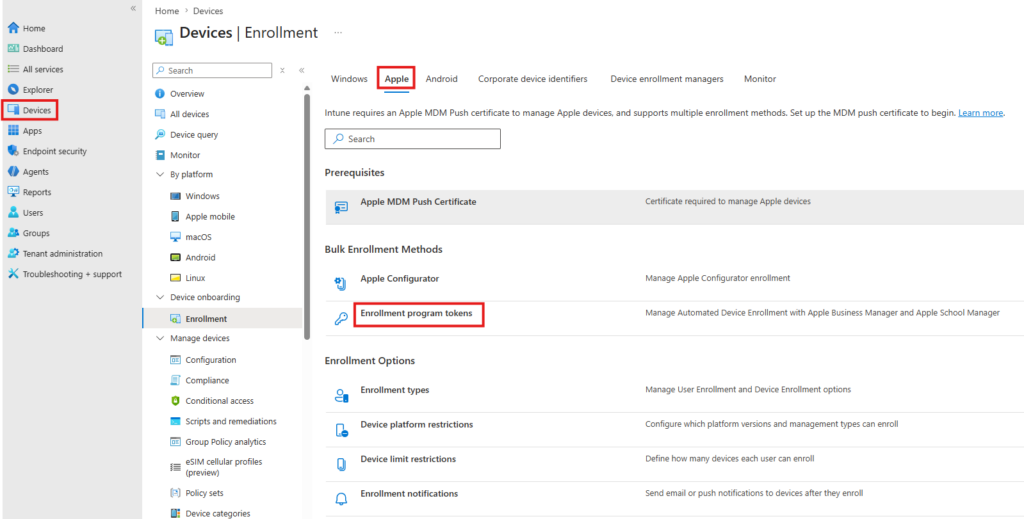
    2. Go to Devices > Enrollment (under Device onboarding) > Apple.
    3. Select Enrollment program tokens and click Create.
    4. Tick the box agreeing to let Microsoft send user and device info to Apple.
    5. Click Download your public key — this grabs the .pem certificate.
    6. Keep this tab open. You’ll need it again in a minute.

    Phase 2: Build the MDM server in Apple Business

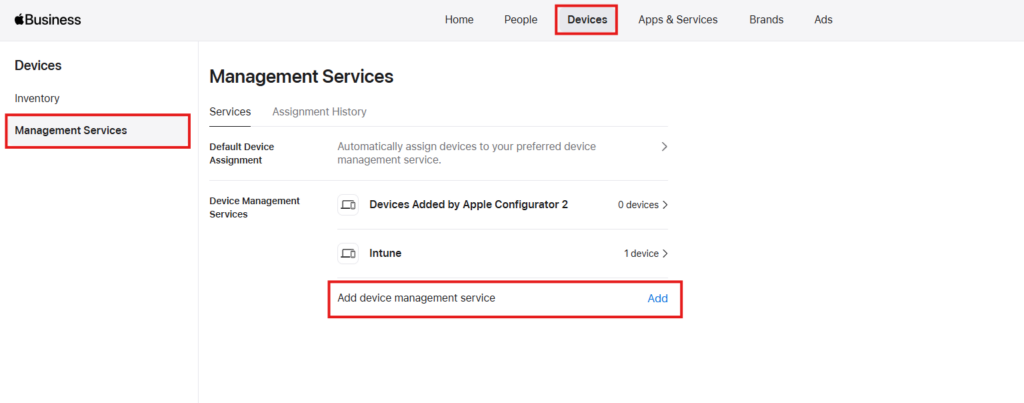
    Open a new tab and log in to Apple Business. https://business.apple.com/ You’ll need the Administrator or Device Enrollment Manager role.

    At the top select Devices, click your Management Services, then Add device management service click Add.

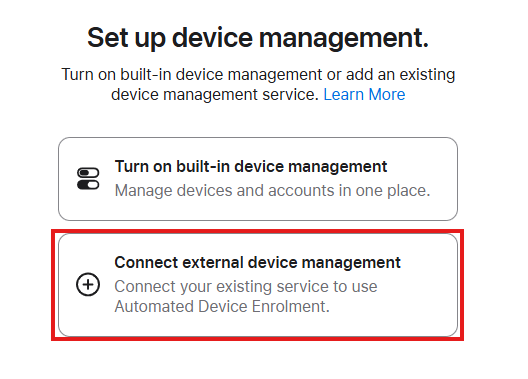
    Under Set up device management, select Connect to external device management, then click the continue button at the bottom.

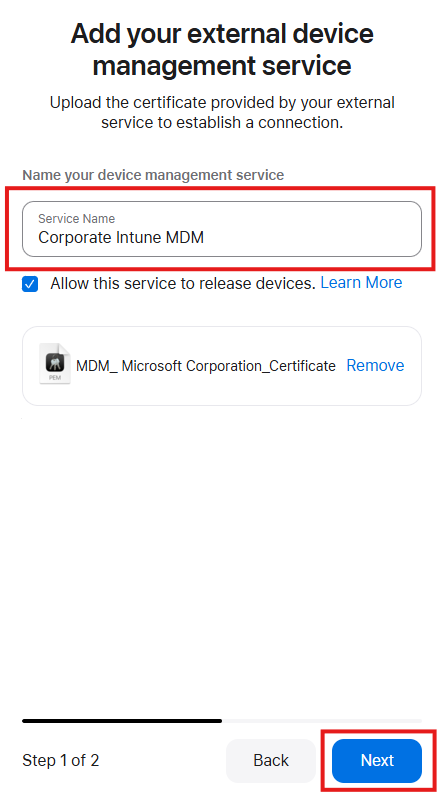
    Give it a sensible name — “Corporate Intune MDM” does the job.

    Under MDM Server Settings, upload the .pem file from Phase 1, and click the blue Next button

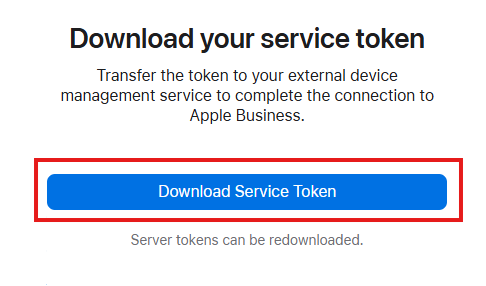
    Click Download Service token. and click Done.

    Phase 3: Upload Apple’s token back into Intune

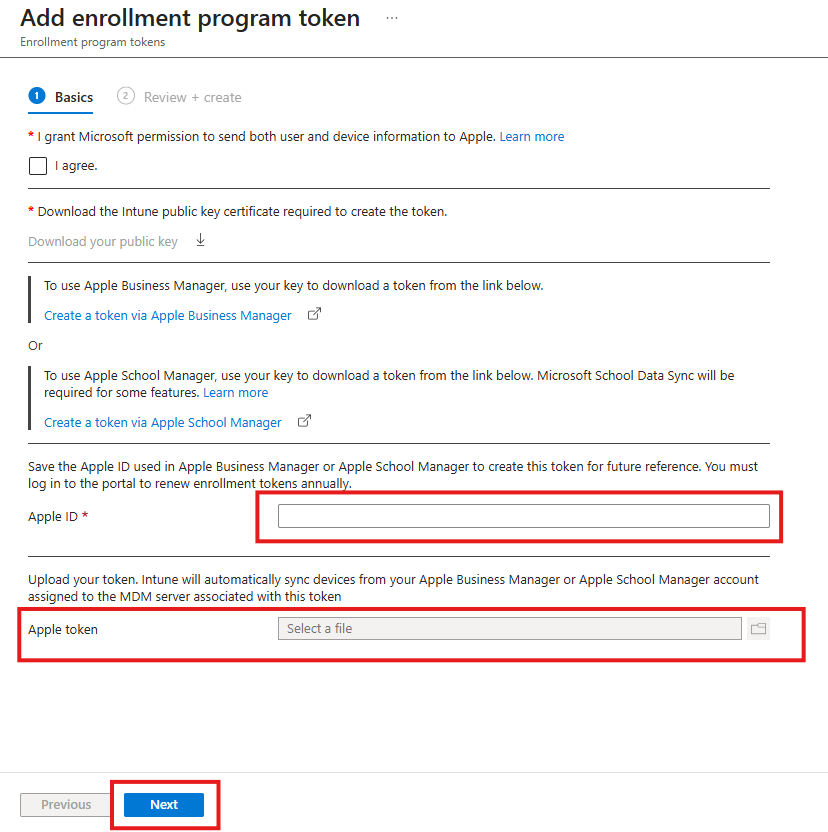
    1. Back to your Intune tab.
    2. In the Apple ID box, enter the corporate Apple ID tied to your ABM account. Worth a comment here for whoever inherits this tenant down the line — they’ll want to know which Apple ID this is.
    3. In the Apple token box, upload the .p7m file from Apple.
    4. Click Next to skip past scope tags (unless your org actually uses them), then Create.

    What happens next

    Token status flips to Active and the plumbing’s in place. Two jobs left:

    Assign hardware in Apple Business. Head to Devices, find your serial numbers or order numbers, assign them to the Intune MDM server you just created.

    Sync and build profiles in Intune. Back to your enrollment token settings, hit Sync to pull the newly assigned serials through. Once they show up, build your Enrollment Program Profiles — force supervision, lock the MDM profile, skip the setup assistant screens for the end user.

    One thing to flag for future you: these tokens expire annually. Stick a reminder in the calendar now, or you’ll be doing this again in a panic next year.