Tag: Intune

  • Collect an Autopilot Hardware Hash With PowerShell

    I recently had a rush order of laptops come in from a supplier we don’t normally use. Our usual supplier registers new devices for Autopilot before they ship, but this one didn’t, so I had to collect the hardware hashes myself.

    Here is the PowerShell script I used. It grabs the hash and saves it as a CSV, ready to import into Intune.

    No extra modules, no downloads. It uses what is already built into Windows.

    What the script does

    It reads the hash from the device itself, adds the serial number, and writes a CSV in the format Intune expects.

    You can also add a group tag, which is handy if you sort devices into Autopilot profiles by tag.

    Getting to a desktop from the OOBE

    A brand new laptop sits at the out-of-box experience (OOBE), the first setup screen, with no desktop to run anything from. You can get past it without setting anything up.

    1. At the first OOBE screen, press Ctrl + Shift + F3.
    2. The laptop restarts into audit mode and lands on a desktop, with a System Preparation Tool window open.
    3. Run the script from there (steps below).

    Audit mode signs you in as the built-in administrator, so the script gets the admin rights it needs.

    How to use it

    1. Get the script from my GitHub repo and copy it onto the device, a USB stick works well.
    2. Open PowerShell as administrator. The script will stop with a clear message if you forget.
    3. Run it from the folder where you saved it.
    powershell.exe -NoProfile -ExecutionPolicy Bypass -File .\Get-AutopilotHardwareHash.ps1

    Want a group tag and a specific output path? Add the parameters.

    .\Get-AutopilotHardwareHash.ps1 -GroupTag "Sales" -OutputFile C:\Temp\hwid.csv

    With no parameters, it saves AutopilotHWID.csv in the current folder. Copy the CSV off the device before you carry on.

    Going back to the OOBE

    If you used audit mode, put the laptop back to its first-run state before you hand it on.

    1. In the System Preparation Tool window, set the cleanup action to Enter System Out-of-Box Experience (OOBE).
    2. Leave Generalize unticked.
    3. Set the shutdown option to Reboot and click OK.

    Importing the CSV into Intune

    1. Open the Intune admin center and go to the Windows Autopilot devices page.
    2. Choose Import and select your CSV.
    3. Wait for the import to finish, then check the device appears in the list.

    Imports can take a few minutes, so give it a moment before you panic.

    Good to know

    • It only works on the device you are collecting from, so run it on each one.
    • If the hash is not available, the script tells you rather than saving an empty file.
    • Test it on one device first and check the CSV imports cleanly before you roll it out.

    The script is free to use and change under the MIT licence. Give it a spin and let me know how you get on.
  • Linking Apple Business Manager with Microsoft Intune

    Linking Apple Business Manager with Microsoft Intune

    Today I had I continue configuring the iPad for a customer now that the Apple Buainess account had been approved. Since this was the first corporate owned Apple device they had purchased and wanted managed. I needed to connect Intune to Apple Business Here is the second part to the managing apple devices in Intune.

    If Intune is your MDM and you’re deploying Apple kit at scale, Apple Business and Intune need to be talking to each other before a single corporate iPhone, iPad, or Mac goes out the door.

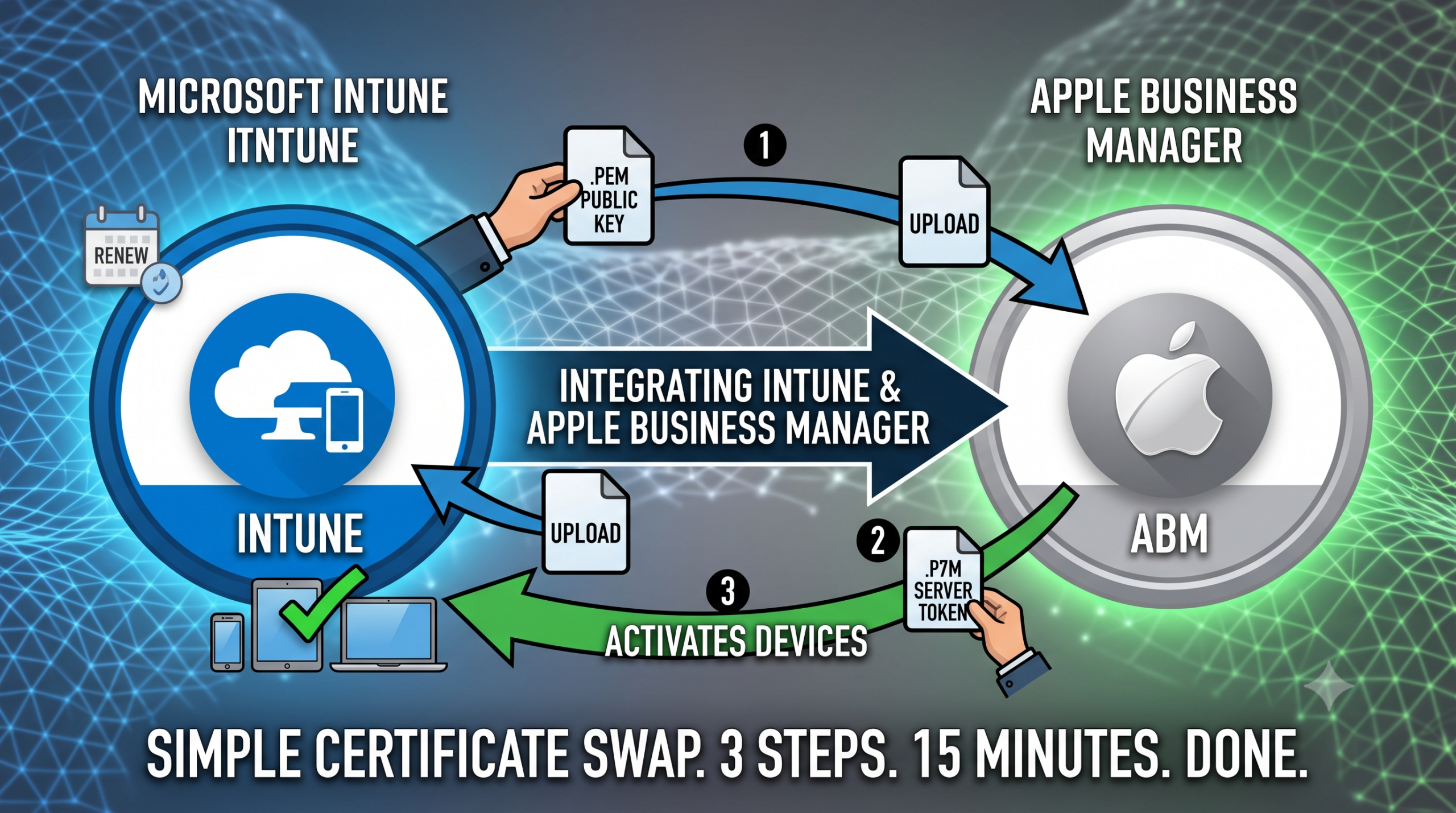
    People overthink this integration. It’s a certificate swap. Pull a public key from Intune, hand it to Apple, bring Apple’s token back home. Three steps, fifteen minutes, done.

    Here’s how to set it up.

    Phase 1: Grab the public key from Intune

    You’re generating an encryption key in your tenant so Apple knows who it’s trusting.

    1. Sign in to the Microsoft Intune admin center.
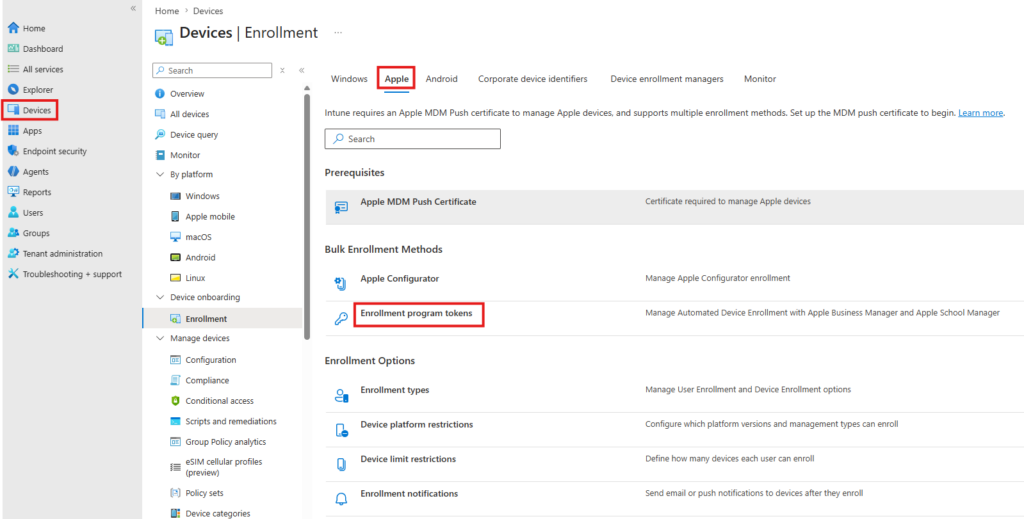
    2. Go to Devices > Enrollment (under Device onboarding) > Apple.
    3. Select Enrollment program tokens and click Create.
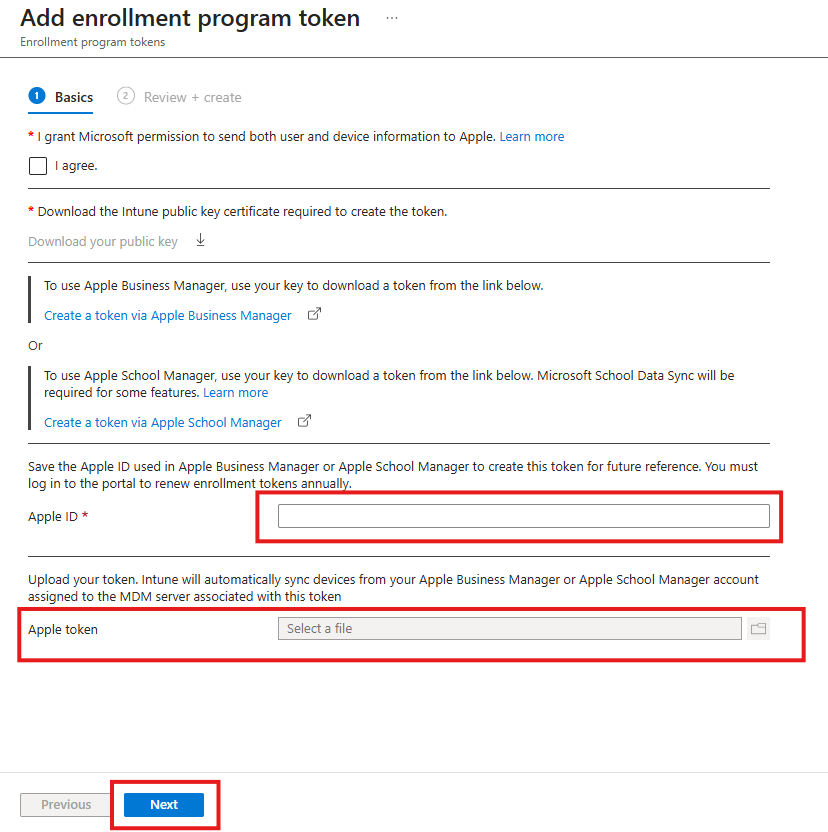
    4. Tick the box agreeing to let Microsoft send user and device info to Apple.
    5. Click Download your public key — this grabs the .pem certificate.
    6. Keep this tab open. You’ll need it again in a minute.

    Phase 2: Build the MDM server in Apple Business

    Open a new tab and log in to Apple Business. https://business.apple.com/ You’ll need the Administrator or Device Enrollment Manager role.

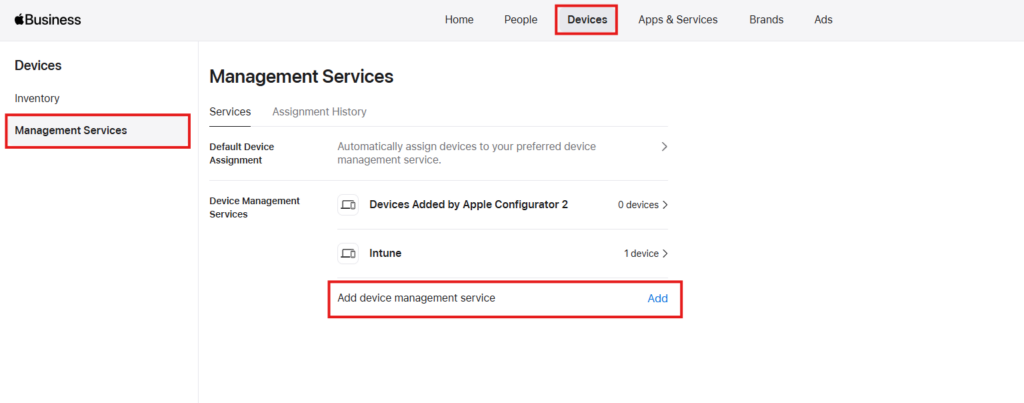
    At the top select Devices, click your Management Services, then Add device management service click Add.

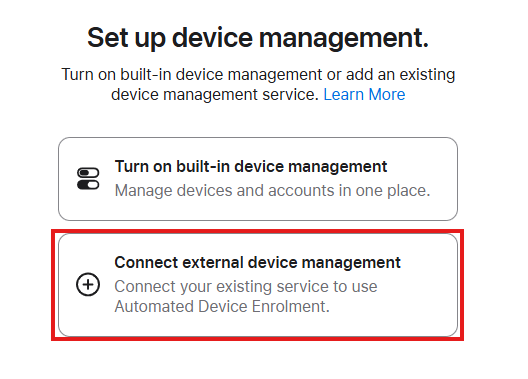
    Under Set up device management, select Connect to external device management, then click the continue button at the bottom.

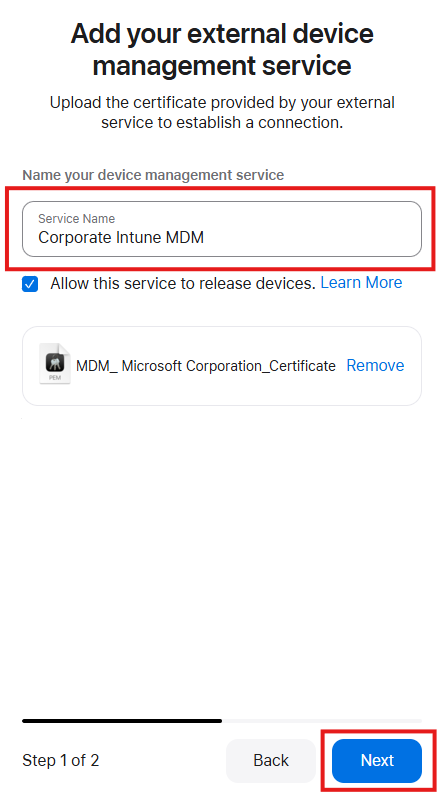
    Give it a sensible name — “Corporate Intune MDM” does the job.

    Under MDM Server Settings, upload the .pem file from Phase 1, and click the blue Next button

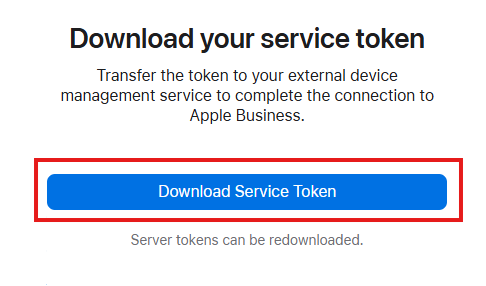
    Click Download Service token. and click Done.

    Phase 3: Upload Apple’s token back into Intune

    1. Back to your Intune tab.
    2. In the Apple ID box, enter the corporate Apple ID tied to your ABM account. Worth a comment here for whoever inherits this tenant down the line — they’ll want to know which Apple ID this is.
    3. In the Apple token box, upload the .p7m file from Apple.
    4. Click Next to skip past scope tags (unless your org actually uses them), then Create.

    What happens next

    Token status flips to Active and the plumbing’s in place. Two jobs left:

    Assign hardware in Apple Business. Head to Devices, find your serial numbers or order numbers, assign them to the Intune MDM server you just created.

    Sync and build profiles in Intune. Back to your enrollment token settings, hit Sync to pull the newly assigned serials through. Once they show up, build your Enrollment Program Profiles — force supervision, lock the MDM profile, skip the setup assistant screens for the end user.

    One thing to flag for future you: these tokens expire annually. Stick a reminder in the calendar now, or you’ll be doing this again in a panic next year.